Version Control
Hardware engineering is iterative work done in teams. Istari Digital's version control features — branches, commits, and change requests — give you a way to manage that iteration so teams can move quickly while staying in control. These features are generally available in the 07.2026 release.
For the conceptual model (Resource versions vs System branches), see Version control.
How it works
- The basic unit of the Istari Digital Platform is a system. Systems allow you to group and version resources and files together. See Systems.
- All systems start with a baseline branch by default. This branch starts off empty; you can add resources, folders, or subsystems by editing the baseline branch.
- At any point in time, you can create a new branch off of an existing branch. This isolates the changes you're making so engineers don't impact each other's work.
- Each change you make to a branch (add, remove, or update a resource or system) creates a new commit. Commits can be reviewed at the system level in the Commit history panel on the right-hand side of the app.
- When you want to merge your changes into another branch, you create a change request, review the delta, and merge it.
Creating branches, committing changes, and merging change requests all require the Editor role or above on the system. Viewers can browse branches, commits, and change requests but cannot change them.
Branches
Create a branch
Requires Editor or above.
- Open a system and click the branch name in the left panel to open the branch switcher.
- Select New Branch.
- In the Create a new branch dialog, choose the Source branch and enter a name for the new branch.
- Click Create branch.
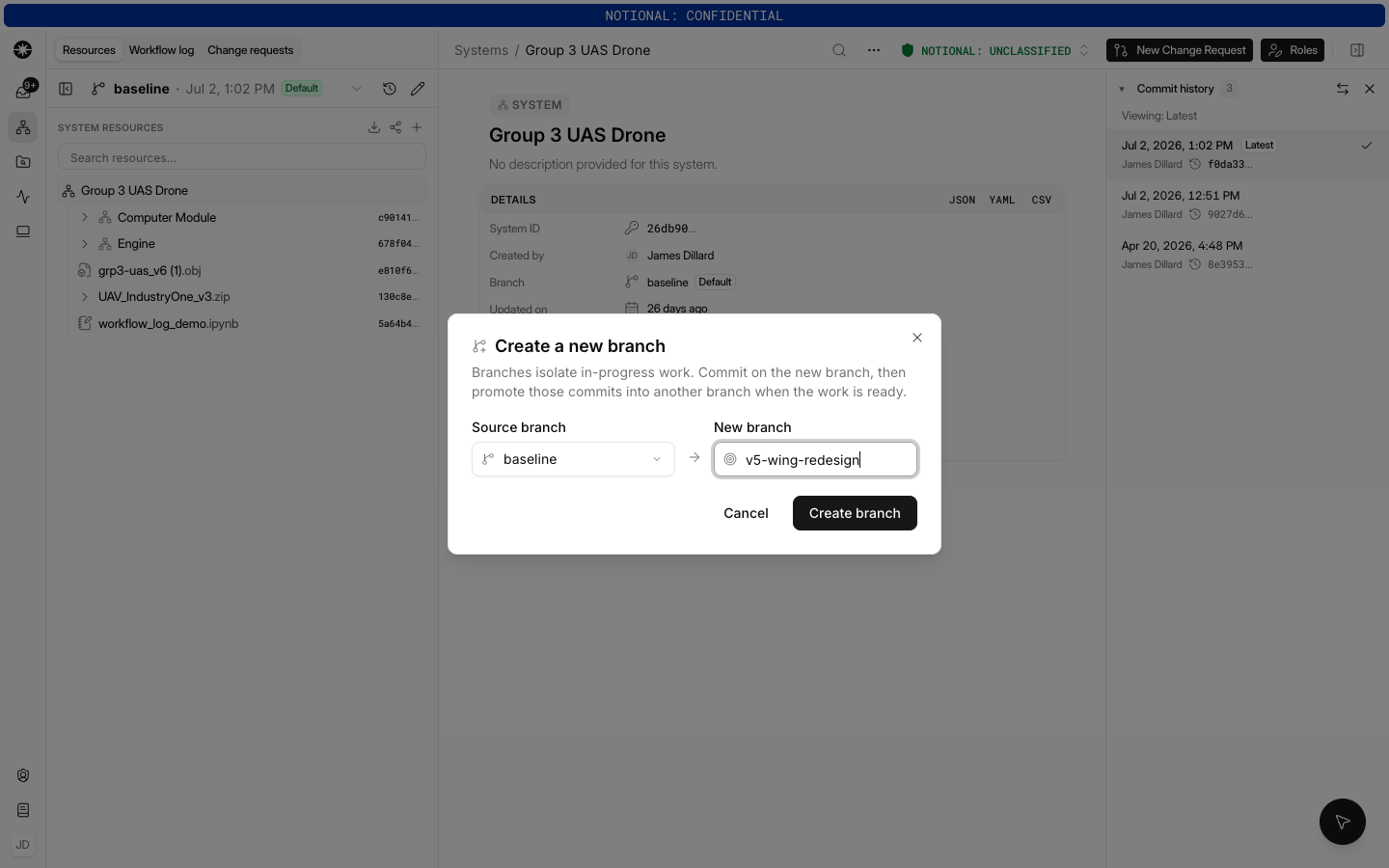
Branches isolate in-progress work: commit on the new branch, then promote those commits into another branch when the work is ready.
Switch branches
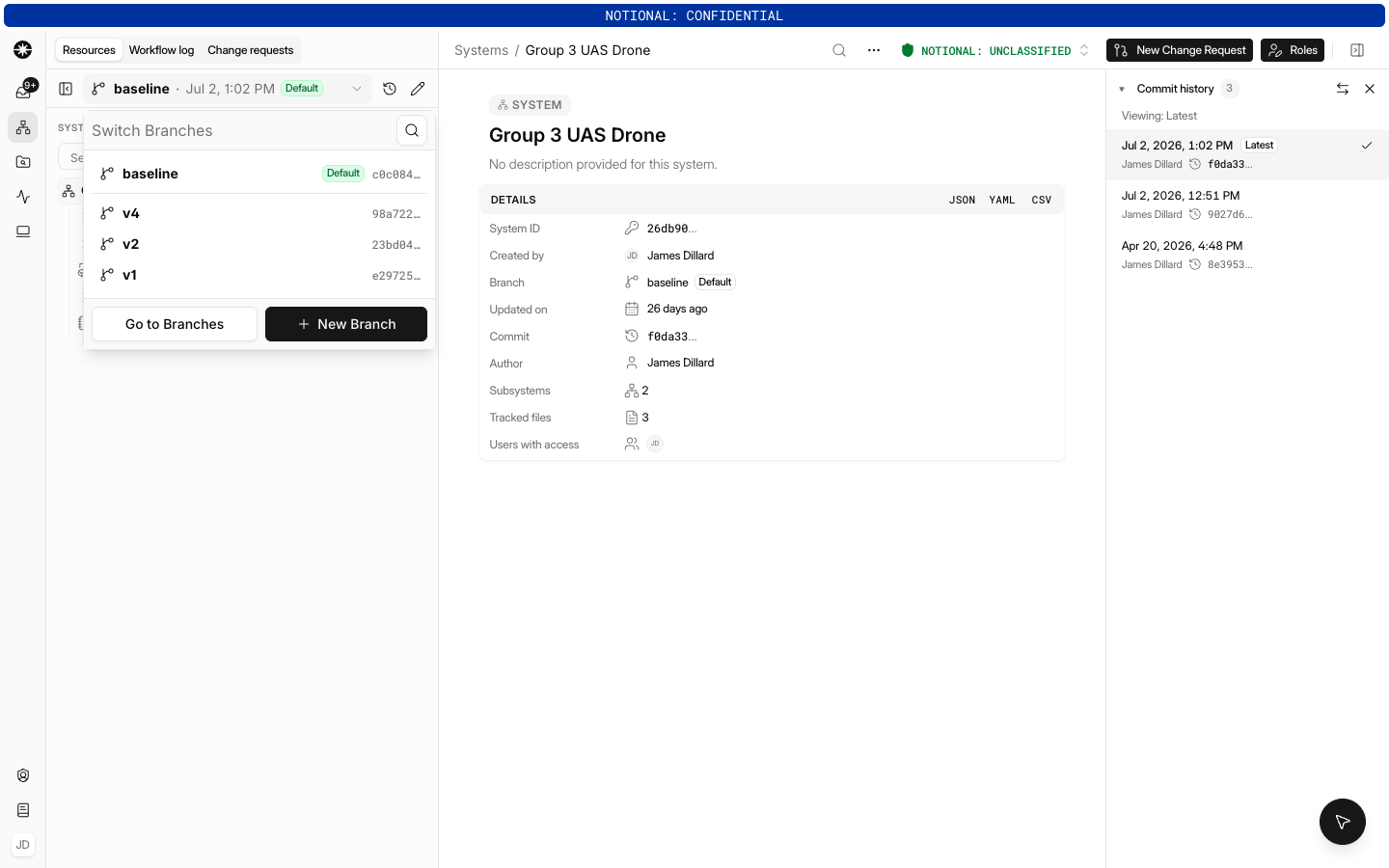
- Click the branch name in the left panel.
- Search or select a branch from the list to load its latest commit and file tree, or select Go to Branches to browse every branch in the system.
Edit a branch
- Select the branch you want to change.
- Click Edit in the left panel, then add or remove resources, folders, or subsystems.
- Click Save. Each save creates a new commit on the branch.
Archive and restore branches
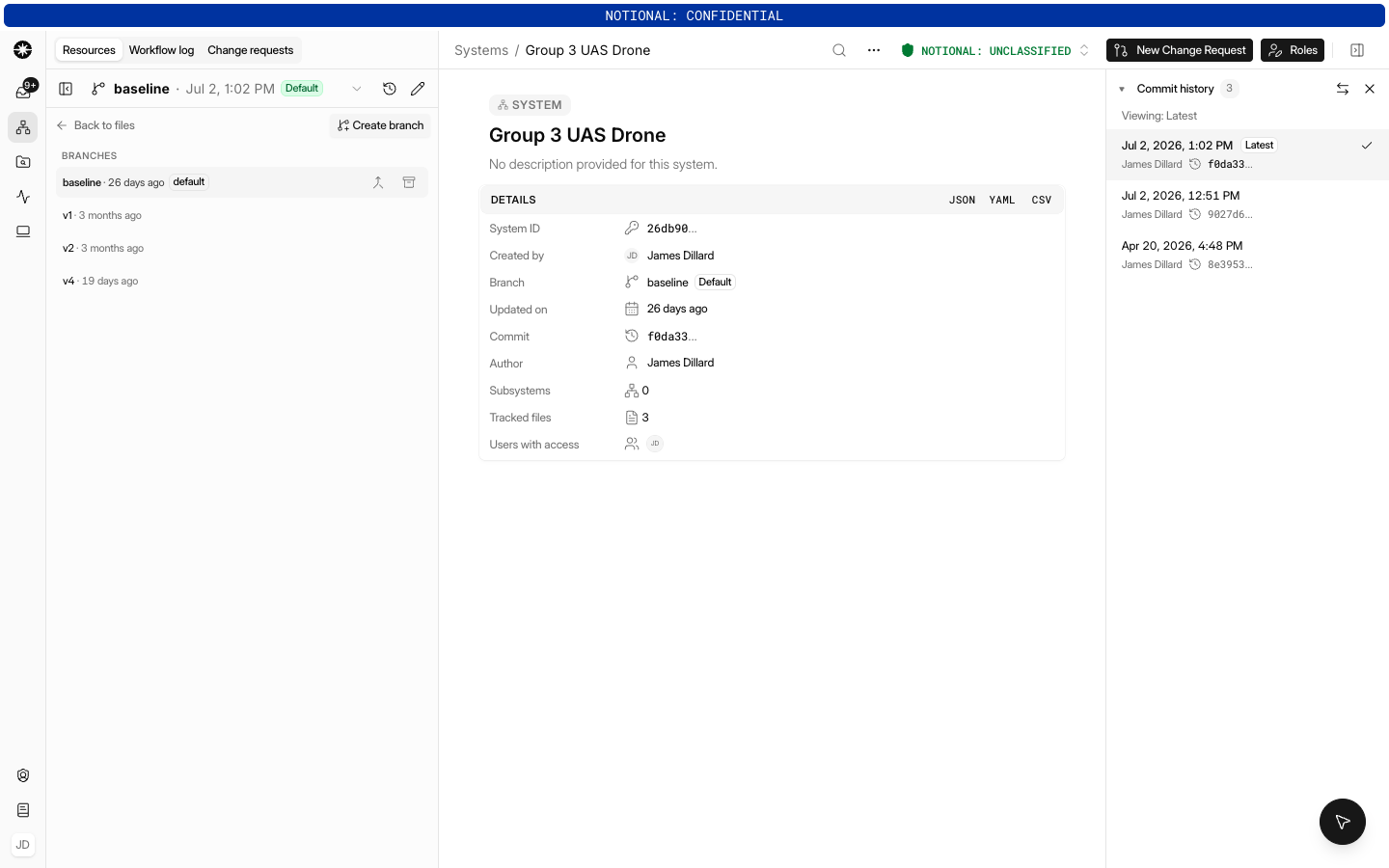
When a branch is no longer active, you can archive it to keep the branch list tidy. Open the branch switcher, select Go to Branches, and use the archive action on the branch's row. Archiving does not delete anything — the branch's commits are preserved, and you can restore an archived branch at any time to keep working on it.
The default baseline branch can never be archived. There is no way to change which branch is the default, so the baseline branch is permanently protected.
Commits
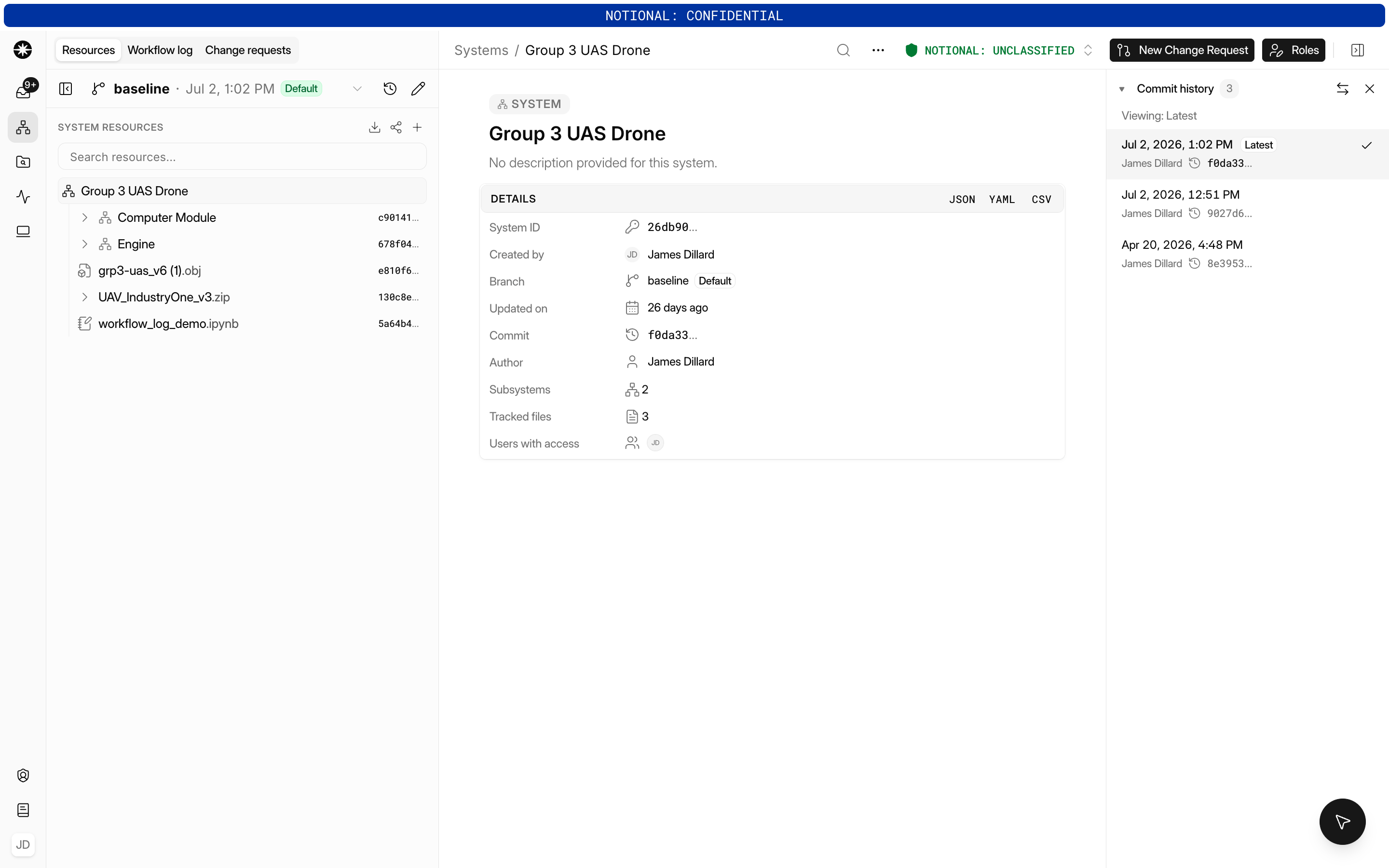
Each commit records a single change to a branch: who made it, when, and an optional message describing the change. The Commit history panel on the right-hand side of the system page lists a branch's commits, newest first. Opening any commit shows you the system exactly as it was at that point — every tracked file and subsystem, at the exact versions they had then.
Change requests
Create a change request
- Open the system and click the New Change Request button in the top-right corner.
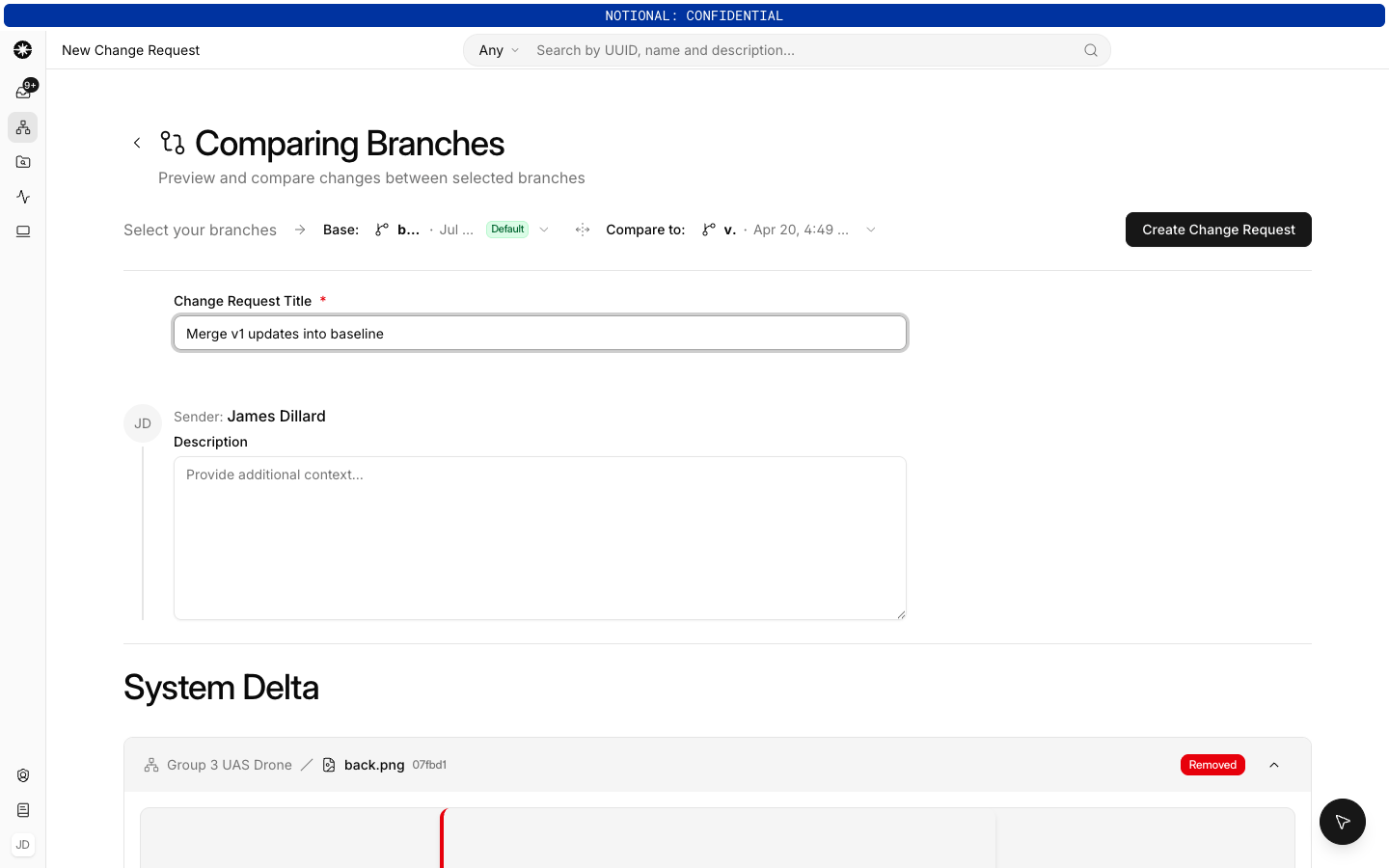
- On the Comparing Branches screen, select the Base branch (the branch you want to update) and the Compare to branch (your working branch).
- Enter a Change Request Title and an optional description.
- Review the System Delta, which shows which resources and systems were added, removed, or changed.
- Click Create Change Request.
Review and merge
Merging requires Editor or above.
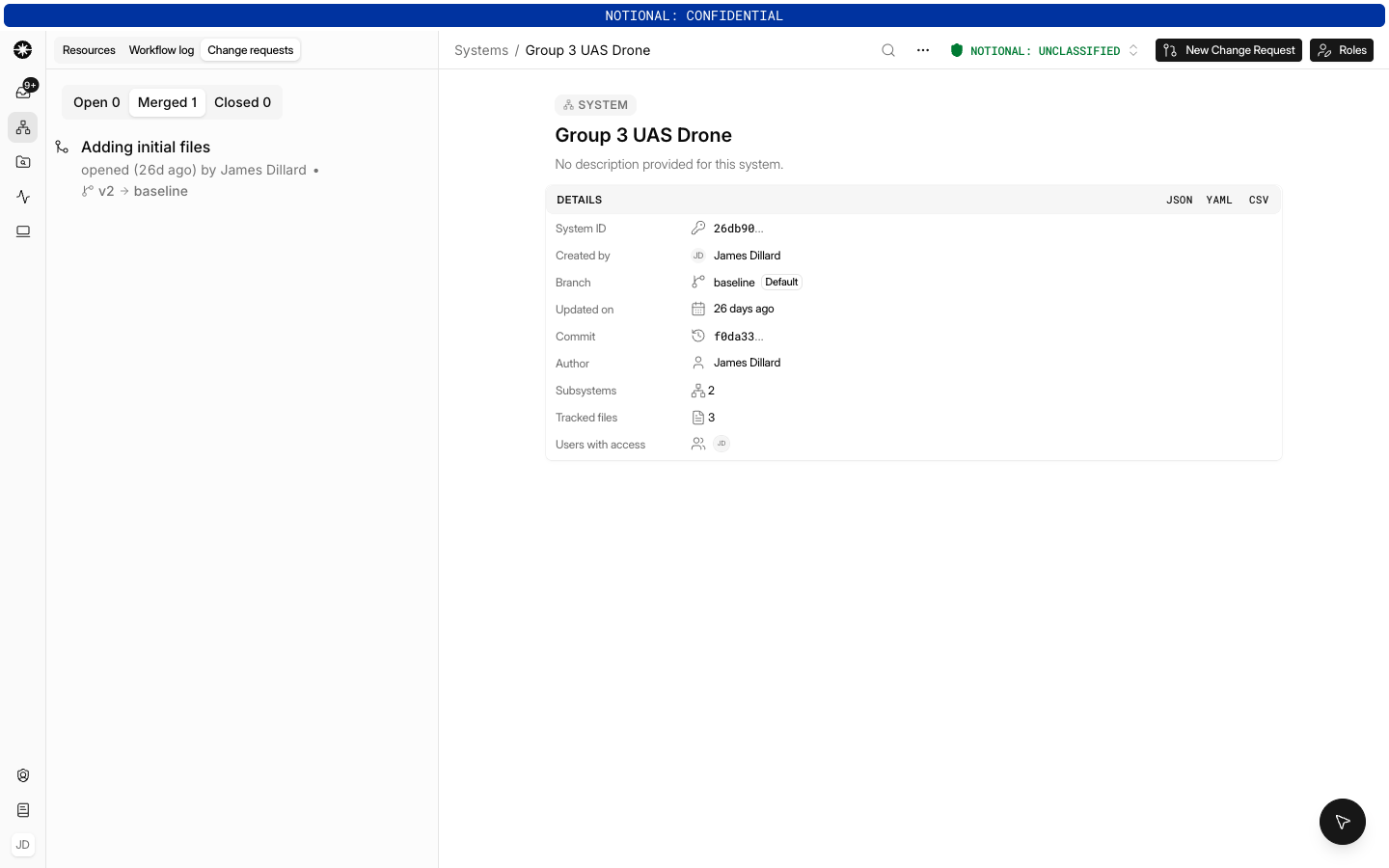
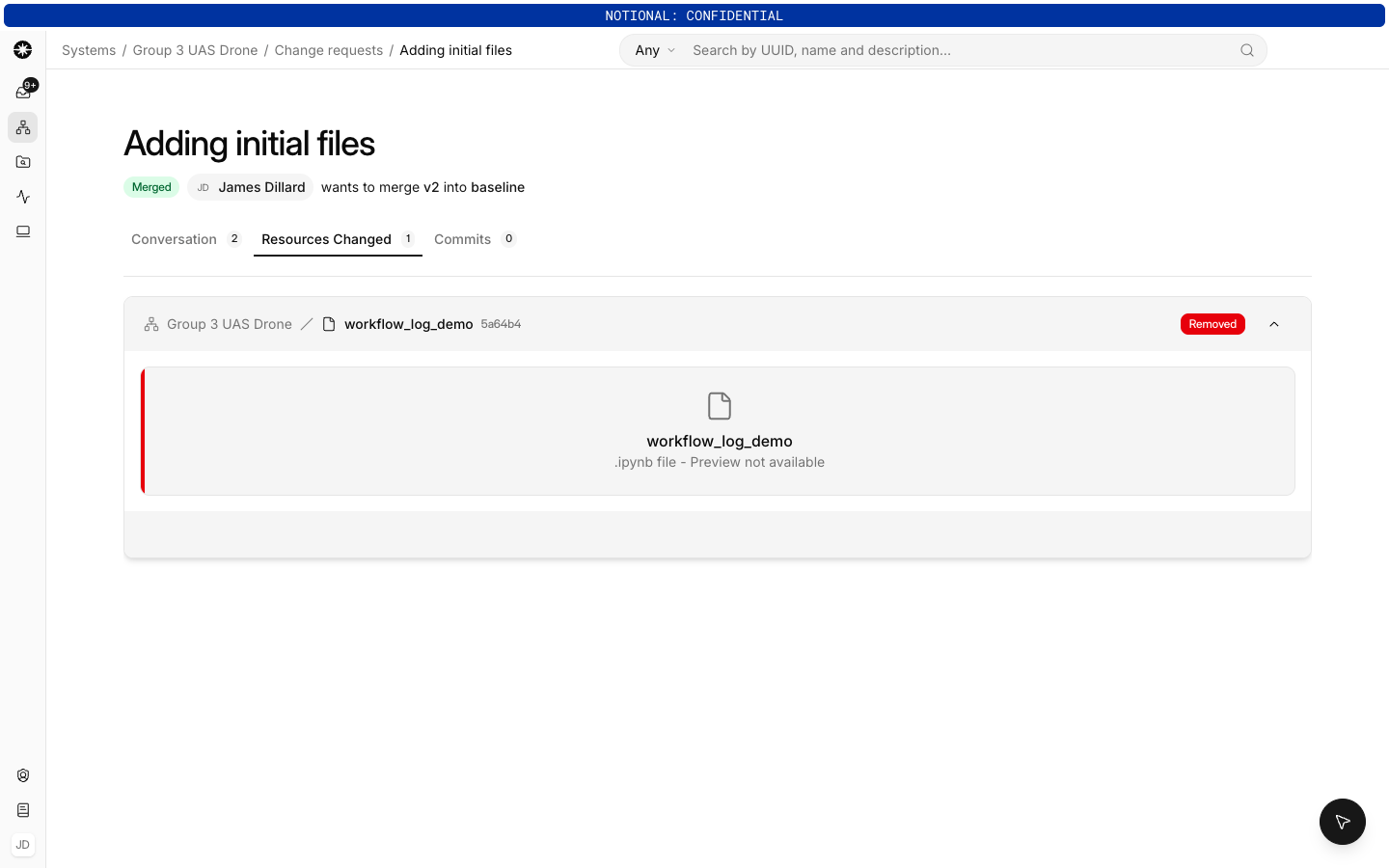
The system's change request list shows each request's title, status, and its source and target branch names, so you can see at a glance what would merge into what. Open a request to see its Conversation, Resources Changed, and Commits.
On the Resources Changed tab, each entry shows a folder breadcrumb for where the resource lives in the system, and files that were relocated are labeled with a moved tag.
- When you're satisfied with the changes, click Merge Change Request. The base branch now points at the same contents as your working branch.
- To reject the changes instead, click Close.
If either branch has moved since the request was opened, merging is blocked until you refresh — this avoids merging a stale comparison. Change requests have no separate approval step: anyone with edit permission can merge or close them.
Creating and merging branches via the SDK
Everything shown above can also be done programmatically with the Istari Digital Python SDK (istari-digital-client, version 10.14.0 or later). This is useful when branching and merging are part of an automated pipeline — for example, committing the output of a simulation run to a branch and opening a change request for review. See SDK Setup to get started.
Connecting to the Istari Digital Platform
First, create a client using your registry URL and a personal access token:
from istari_digital_client import Client, Configuration

client = Client(
    Configuration(
        registry_url="https://your-registry-url",
        registry_auth_token="your-personal-access-token",
    )
)
Getting a system and its branches
Branch operations live on the System object. Every system starts with a baseline branch, which you can look up by name:
system = client.get_system("26db98...")   # your system ID

baseline = system.get_branch("baseline")
branches = system.list_branches()          # all branches except baseline
Creating a branch
Create a new branch off of any existing branch to isolate the changes you're making:
v2 = system.create_branch("v2", from_branch=baseline)
The add_to_branch helper commits to working branches; to update baseline, merge a change request into it as shown below.
Committing files to a branch
Upload a file, then commit its revision to the branch. You can commit several revisions (and subsystems) in a single commit:
render = client.add_file("renders/back.png")
bom = client.add_file("bill_of_materials.json")

v2 = system.add_to_branch(v2, revisions=[render.revision, bom.revision])
To remove tracked files from a branch, use system.remove_from_branch() with the same arguments. Each call to add_to_branch / remove_from_branch creates one commit, which you can see in the branch's commit history:
for commit in system.list_branch_history(v2):   # newest first, like `git log`
    print(commit.snapshot_id, commit.created)
Creating a change request
When you want to merge those changes, create a change request from your working branch (the source) into the branch you want to update (the target):
from istari_digital_client import ChangeRequestCreateRequest

response = client.create_change_request(
    system_id=system.id,
    change_request_create_request=ChangeRequestCreateRequest(
        source_tag_id=v2.id,
        target_tag_id=baseline.id,
        title="Move v2 to baseline",
        description="Added the renders and bill of materials",
    ),
)

change_request = response.actual_instance   # an OpenChangeRequestResponse
print(change_request.change_request_id, change_request.status)   # ... OPEN
Reviewing the changes
Just like in the UI, you can see which resources and systems were added, removed, or changed before merging. Get the high-level counts first:
summary = client.change_request_change_summary(
    system_id=system.id,
    change_request_id=change_request.change_request_id,
)
print(f"{summary.added_count} added, {summary.removed_count} removed, "
      f"{summary.changed_count} changed")
Then page through the full delta:
diff_page = client.change_request_changes(
    system_id=system.id,
    change_request_id=change_request.change_request_id,
)

for item in diff_page.items:
    diff = item.actual_instance   # a resource diff or a subsystem diff
    print(diff.diff_type, diff.name)
You can filter the delta with component_type= (RESOURCE or SUBSYSTEM) and change_types= (a list of ADDED, REMOVED, CHANGED), using the ChangeRequestComponentType and ChangeRequestDiffType enums. If has_more is true on the returned page, pass its next_cursor back as cursor= to fetch the next page.
Merging the change request
When you're satisfied with the changes, merge the change request. The target branch now points at the same contents as your working branch:
from istari_digital_client import ChangeRequestMergeRequest

merged = client.merge_change_request(
    system_id=system.id,
    change_request_id=change_request.change_request_id,
    change_request_merge_request=ChangeRequestMergeRequest(
        comment="Approved and merged",
    ),
).actual_instance

print(merged.status)   # MERGED
To reject a change request instead of merging it, use client.close_change_request() with a ChangeRequestCloseRequest.
Putting it all together
from istari_digital_client import (
    ChangeRequestCreateRequest,
    ChangeRequestMergeRequest,
    Client,
    Configuration,
)

client = Client(Configuration(
    registry_url="https://your-registry-url",
    registry_auth_token="your-personal-access-token",
))

system = client.get_system("26db98...")
baseline = system.get_branch("baseline")

# Branch, then commit new resources to it
v2 = system.create_branch("v2", from_branch=baseline)
bom = client.add_file("bill_of_materials.json")
v2 = system.add_to_branch(v2, revisions=[bom.revision])

# Open a change request from v2 into baseline
change_request = client.create_change_request(
    system_id=system.id,
    change_request_create_request=ChangeRequestCreateRequest(
        source_tag_id=v2.id,
        target_tag_id=baseline.id,
        title="Move v2 to baseline",
    ),
).actual_instance

# Review the delta, then merge
summary = client.change_request_change_summary(
    system_id=system.id,
    change_request_id=change_request.change_request_id,
)
print(f"{summary.added_count} added, {summary.removed_count} removed, "
      f"{summary.changed_count} changed")

client.merge_change_request(
    system_id=system.id,
    change_request_id=change_request.change_request_id,
    change_request_merge_request=ChangeRequestMergeRequest(comment="LGTM"),
)
Transitioning from configurations and snapshots
Branches are replacing configurations, which previous versions of Istari used to manage the set of resources and subsystems inside of a system.
Your existing configurations have not been deleted and no data is lost. They have been moved to branches with the same names the configurations had before. You can see them by clicking on the branch name in the system.
In previous versions of Istari, every time you updated a configuration, Istari captured a snapshot — a complete picture of the resources and subsystems in the system at that moment. Those snapshots now appear as commits in the commit history of the branch that replaced your configuration, in the same order they were created.
A commit points at a snapshot, so opening any commit in the Commit history panel shows you the system exactly as it was at that point. In practice, this means anywhere you previously used a snapshot of a configuration, you can now use a commit on a branch. The contents are identical; what's new is that commits stack up into a browsable history, so you can always step back and compare or recover an earlier state of the system.